Check a Rooms Schedule
This guide will explain how you can check the schedule of a specific room.
Step-By-Step Guide
Important
It is assumed that the user is successfully logged in and has the necessary permissions!
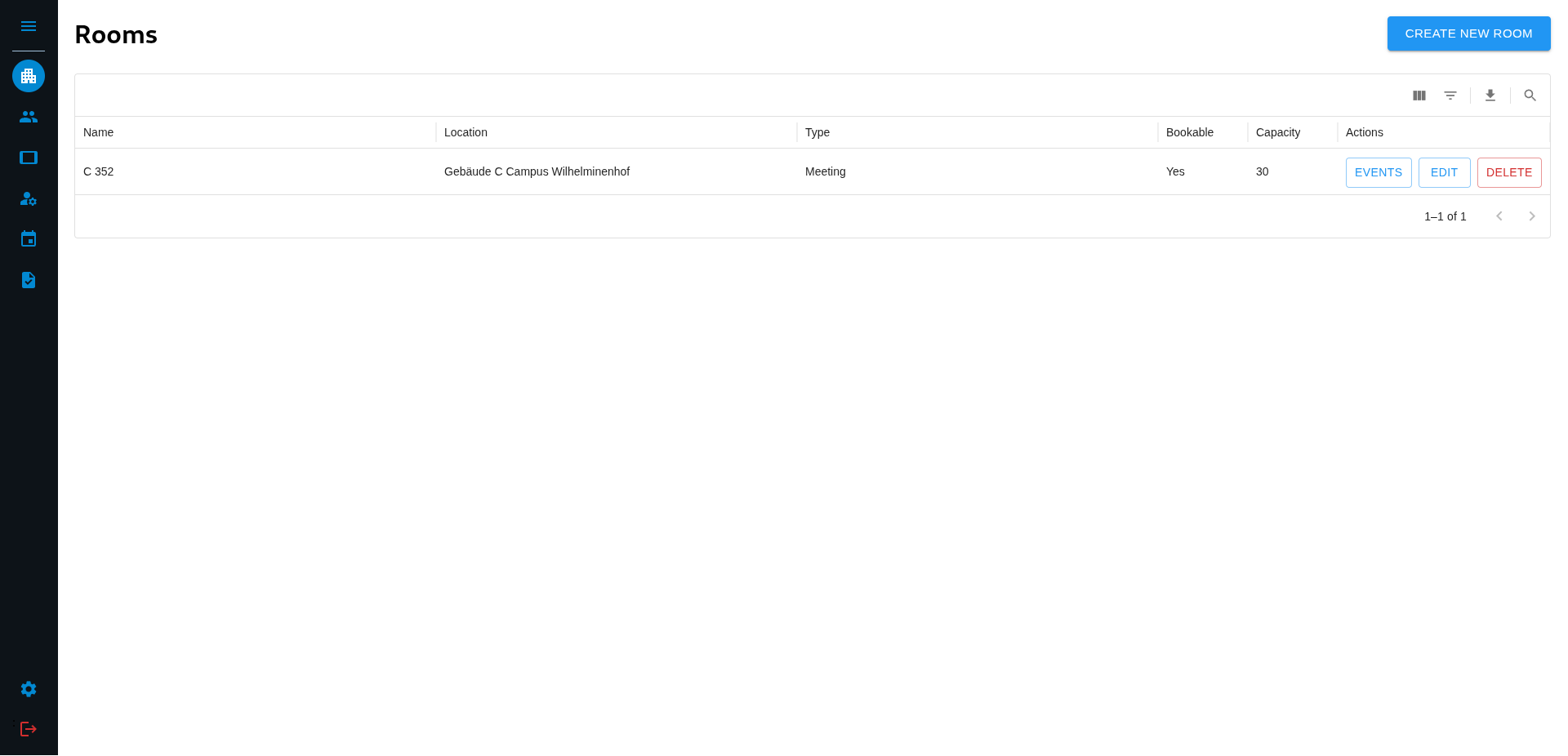
On Login the user lands on the Rooms page.
Step 1
Select the Room you want to check by finding its row and clicking on “EVENTS” on the right side of the row. This will open a calendar.
Step 2
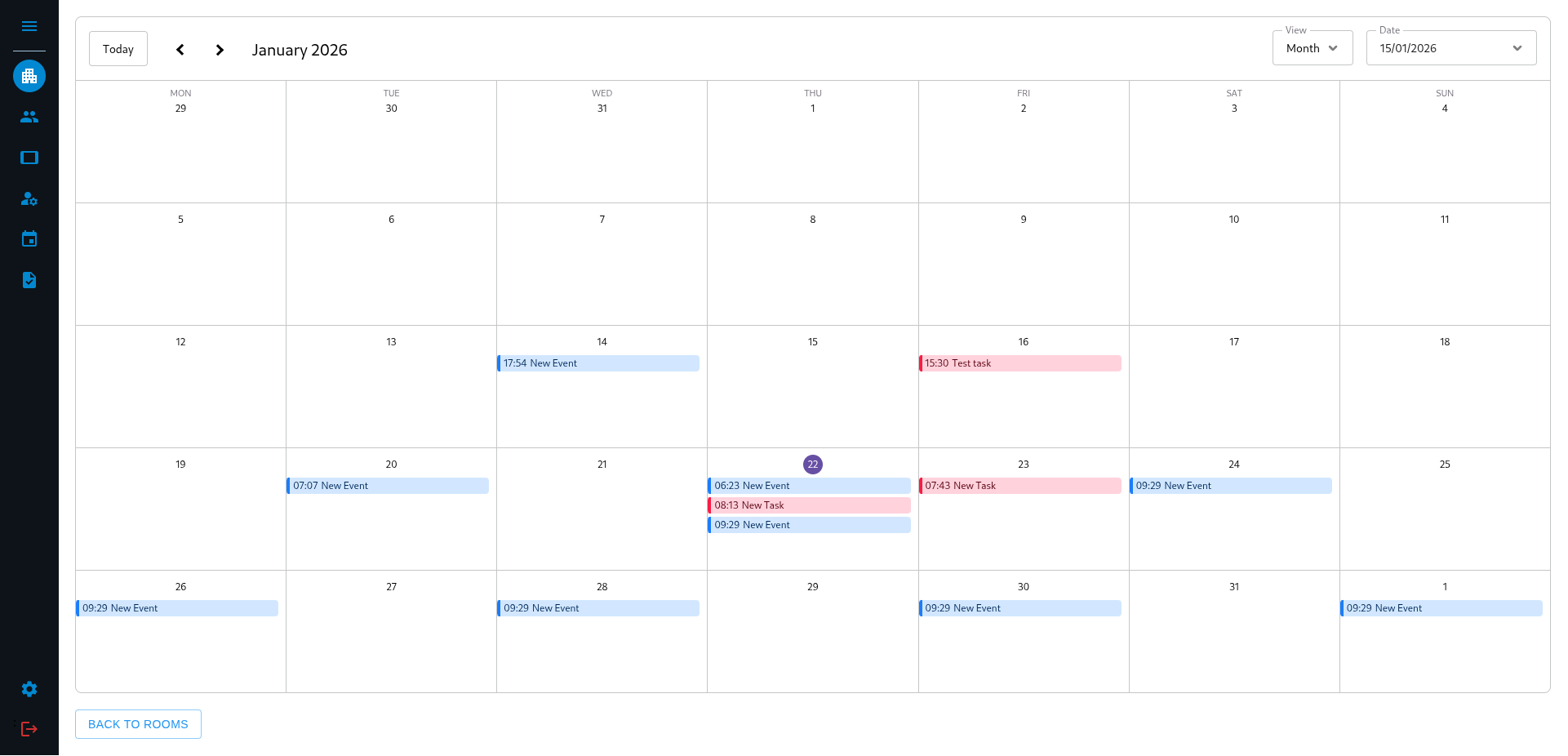
This calendar has three different views that you can select in the top right under “View”, a daily, weekly and monthly view. Each has its specific benefits and should be select depending on your current task.
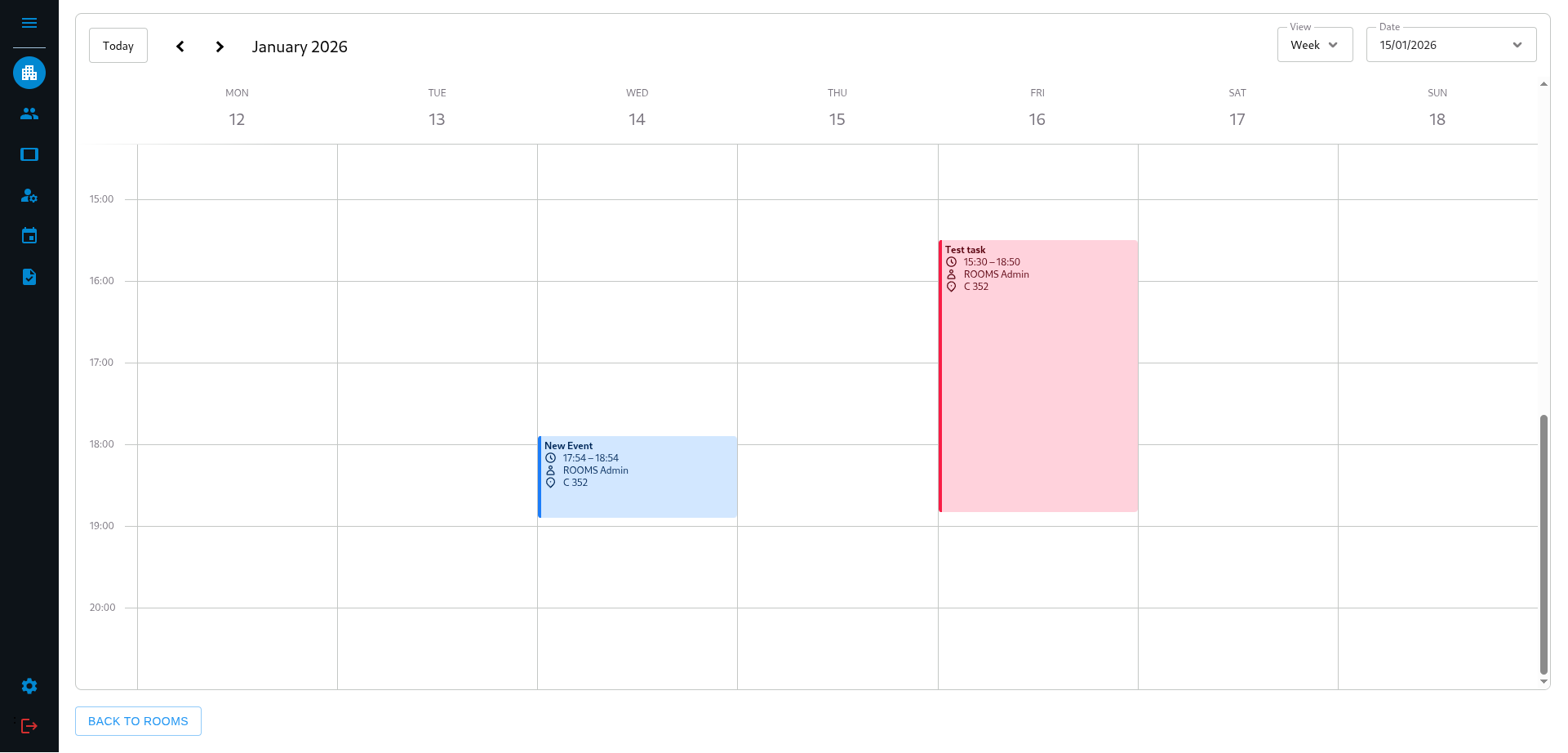
You can navigate between days/weeks/months by using the arrows in the top left corner. There is also a “Today” button that always sets the calendar to the current date.
In this calendar you can see past and future Events in blue and Tasks in red. By clicking on an Event/Task you open a dialog where you can change the properties of this Event/Task.
Step 3
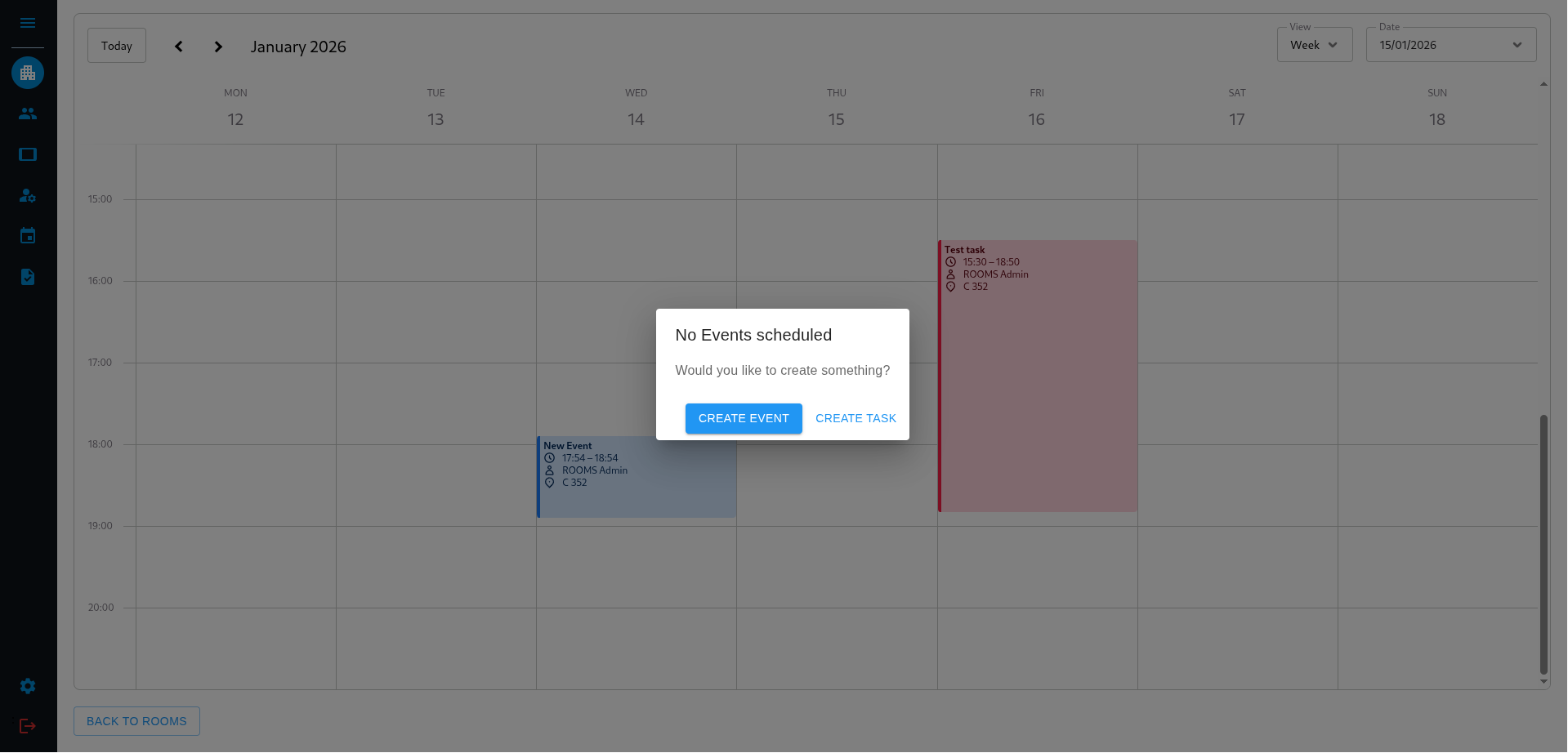
You can also create a new Event/Task in this view. Click onto the empty space in the calendar. This will open a dialog that asks if you want to crate an Event or a Task
Step 3.1
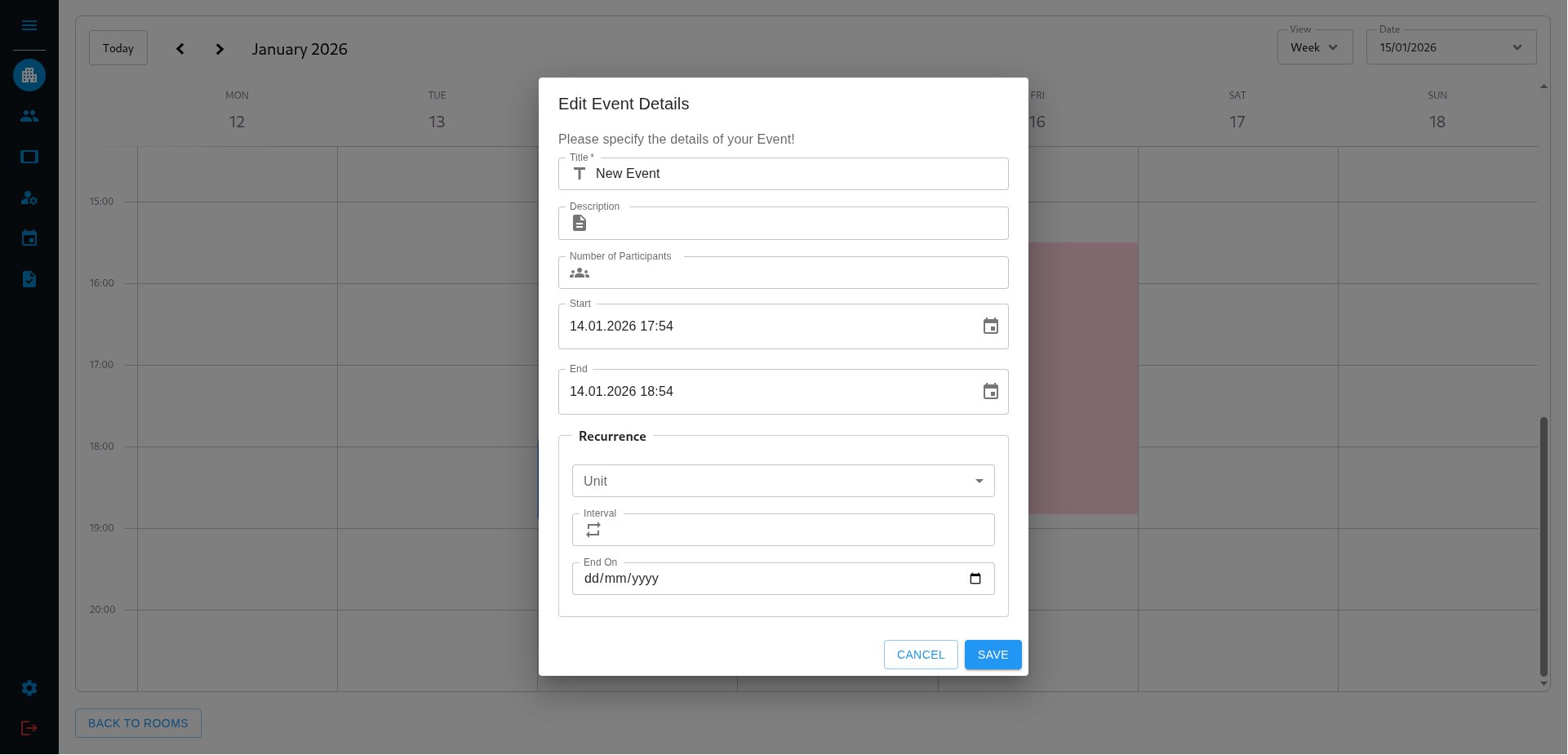
If you select Event it will open a dialog and take the time and date where you clicked as start time for the new event. Just fill out the rest of the form and click on “SAVE” in the lower right.
Step 3.2
If you select Task it will bring you to the Create new Task page where you can create a Task as described here.