Create an Event/Task
This guide will explain how you can create a new Event or Task. Since both procedures are really similar we will explain them together. Just follow the one that applies for you.
Step-By-Step Guide
Important
It is assumed that the user is successfully logged in and has the necessary permissions!
On Login the user lands on the Rooms page.
Step 1
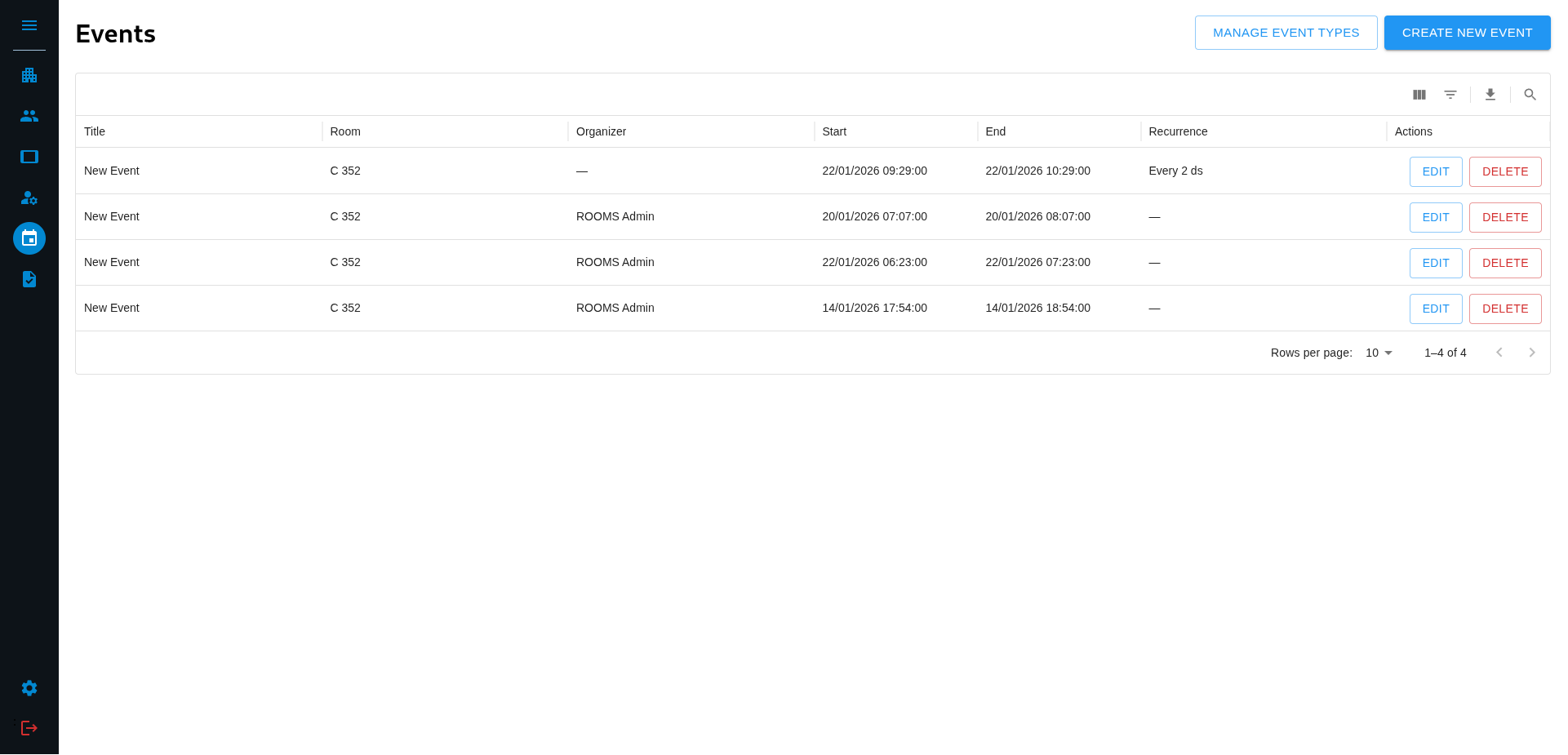
Navigate to the Events/Tasks page by clicking on the according Icon. If you use this App for the first time you can open the sidebar by clicking the Menu Icon on top of the sidebar. This will show you buttons with text which makes navigating easier for new users. Then just click on either “EVENTS” or on “TASKS”. This will bring you to the desired page.
Step 2
Once you are on the Events/Tasks page you can click on “CREATE NEW EVENT” or “CREATE NEW TASK” in the top right corner depending on the one you chose. This will bring you into the Create new Event/Create new Task page.
Step 3
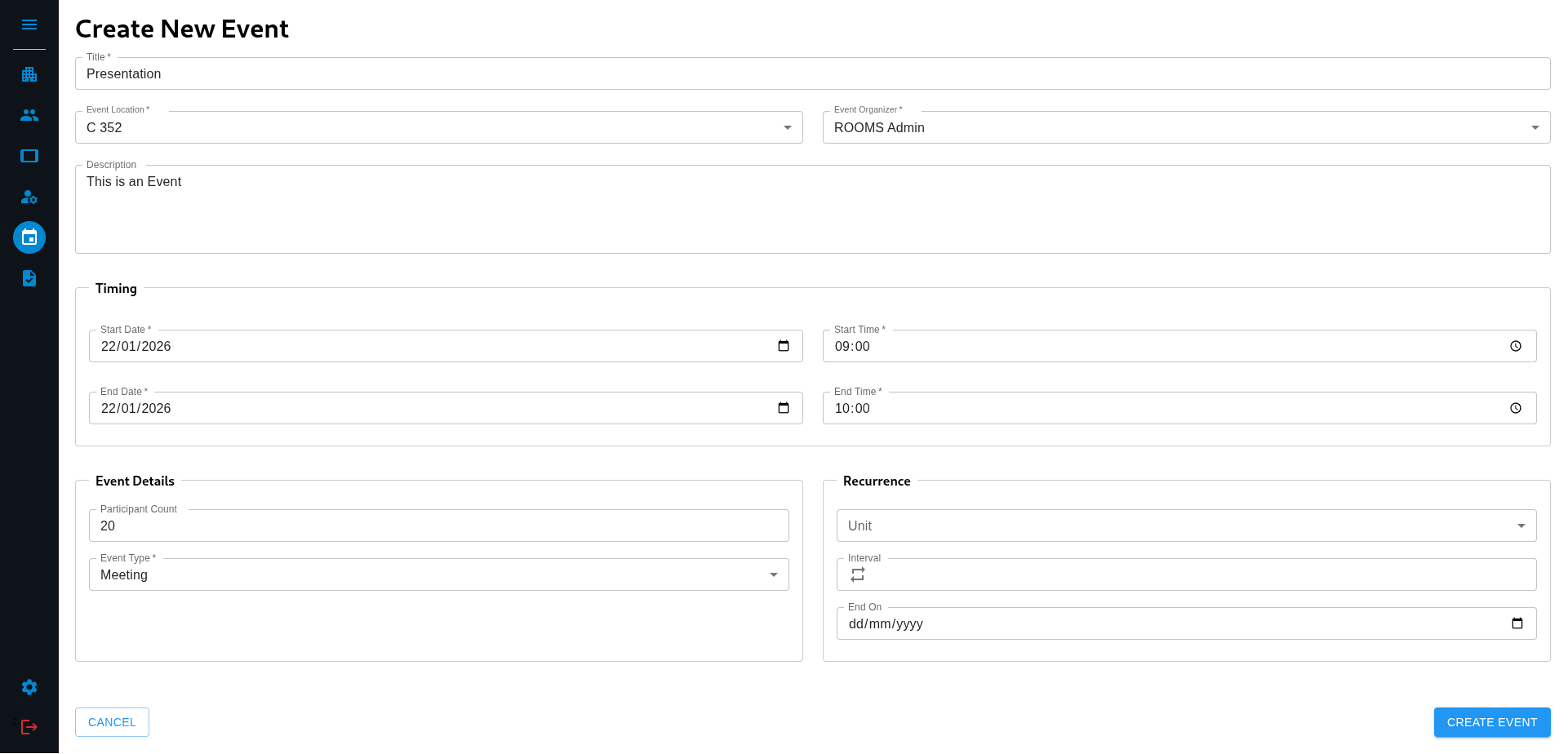
Fill out the respective form and make sure to fill all fields that are marked with an asterisk (*) as these are required.
Step 3.1
When selecting an Event/Task type it might be possible that you want to use a type that is not listed in the options. In this case you can click on “Create new event/task type”. This will open a Dialog where you can create a new Event/Task type by giving a name and an optional description and clicking on “CREATE”. This one will automatically be selected. You can learn more about managing Event/Task types over here
Step 4
Once you filled out every required field in the form you can click on “CREATE EVENT/TASK” which will bring you back to the Events/Task page and show all events or tasks, including your newly created one