Create a Room
This guide will explain how you can create a new Room.
Step-By-Step Guide
Important
It is assumed that the user is successfully logged in and has the necessary permissions!
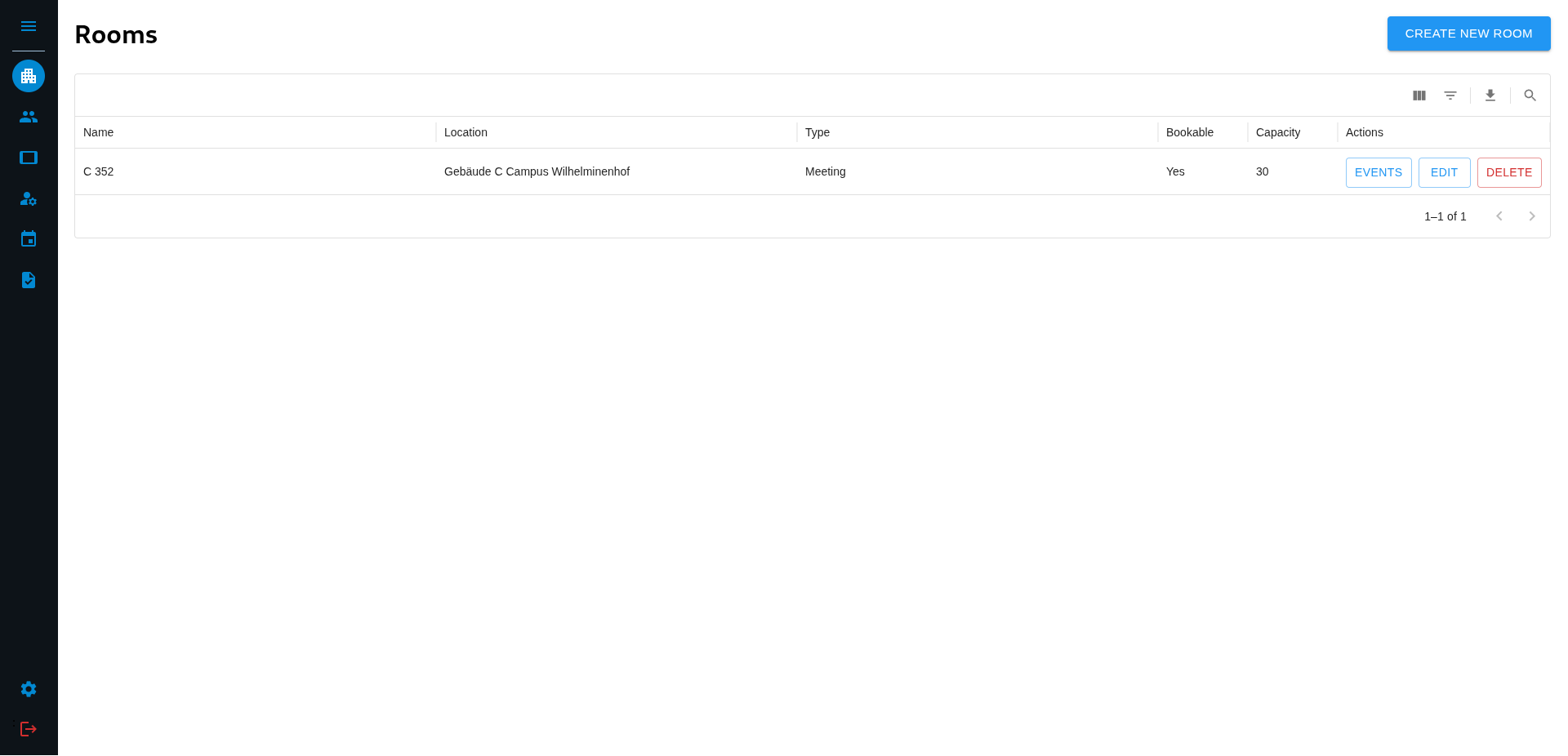
On Login the user lands on the Rooms page.
Step 1
Click the Button “CREATE NEW ROOM” in the top right corner. This will bring you to the Create New Room page.
Step 2
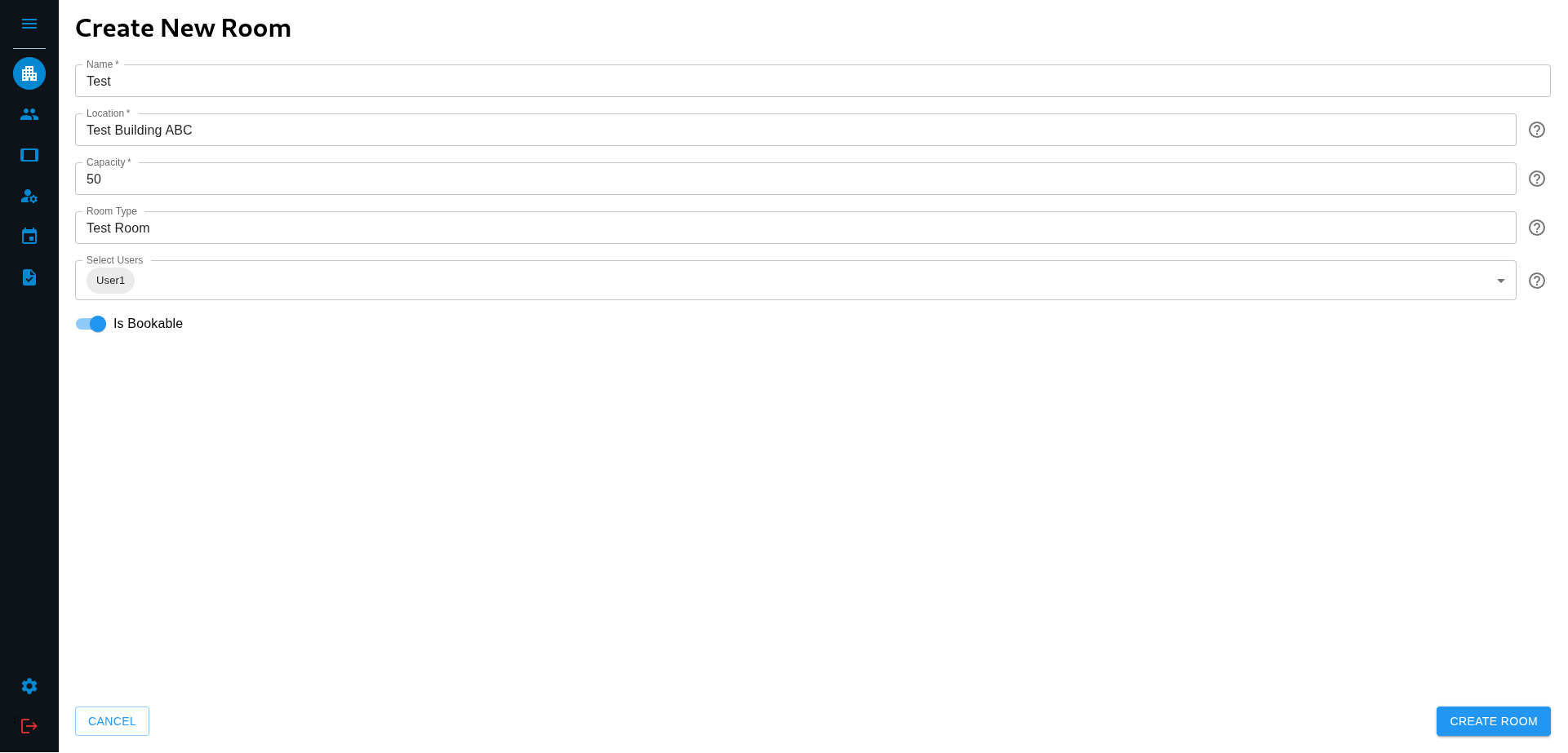
Enter all the Details for the room you want to create. Fields that are marked with an asterisk (*) are required. If you want to be able to book the room you should mark the room as bookable (usefull for meeting rooms).
You can also select the persons that use this room, for example the people that work in an office. This will be shown on the display.
Step 3
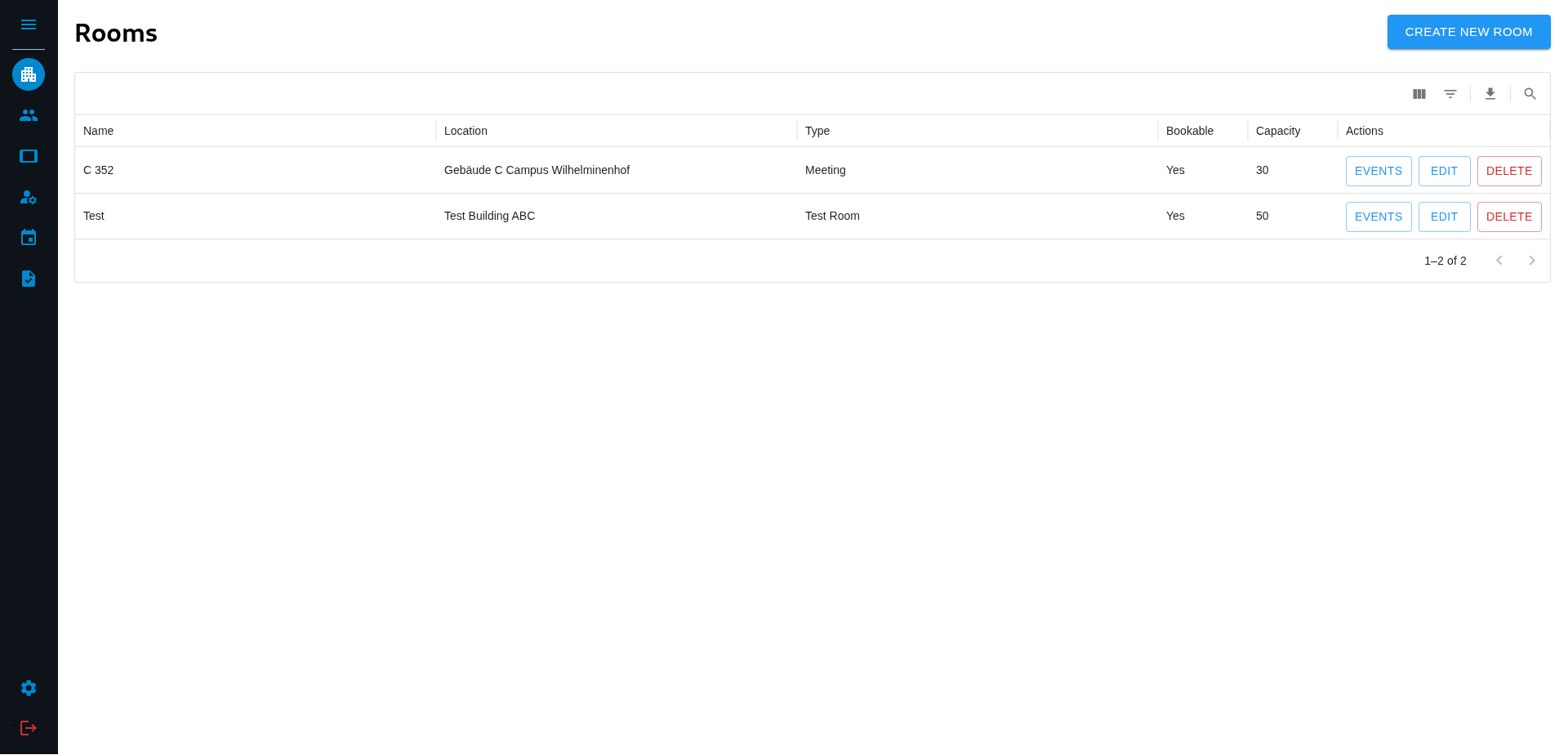
Lastly confirm your new room by clicking on “CREATE ROOM” in the lower right corner. This will bring you back to the Rooms page where you can see all rooms, including your newly created one.